Si tu sitio web fue creado con la herramienta de creación de sitios Hostinger, consulta 'Herramienta de creación de sitios: Cómo crear y restaurar copias de seguridad del sitio web'.
En Hostinger, si tu plan es Business o superior, puedes usar la herramienta de copias de seguridad para crear manualmente copias de todos los archivos y bases de datos del plan de hosting.
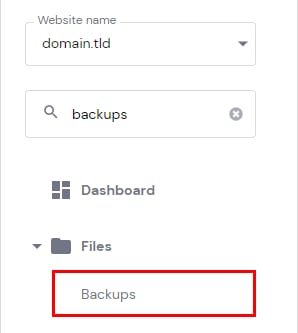
Ve a Sitio web (Websites) → Panel (Dashboard), encuentra Copias de seguridad (Backups) en la barra lateral y haz clic.
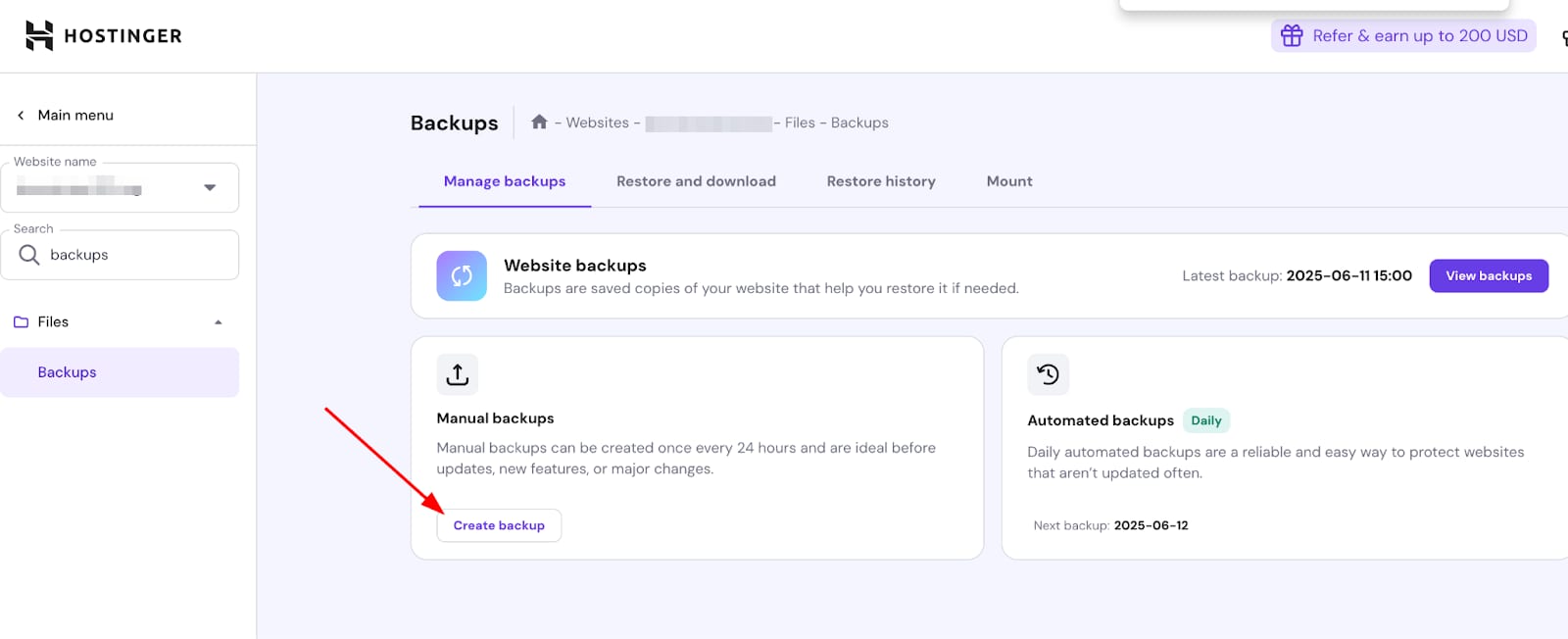
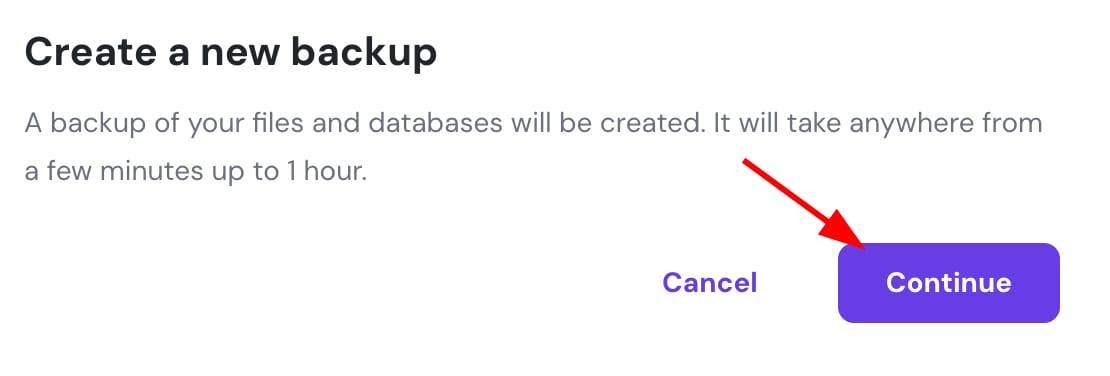
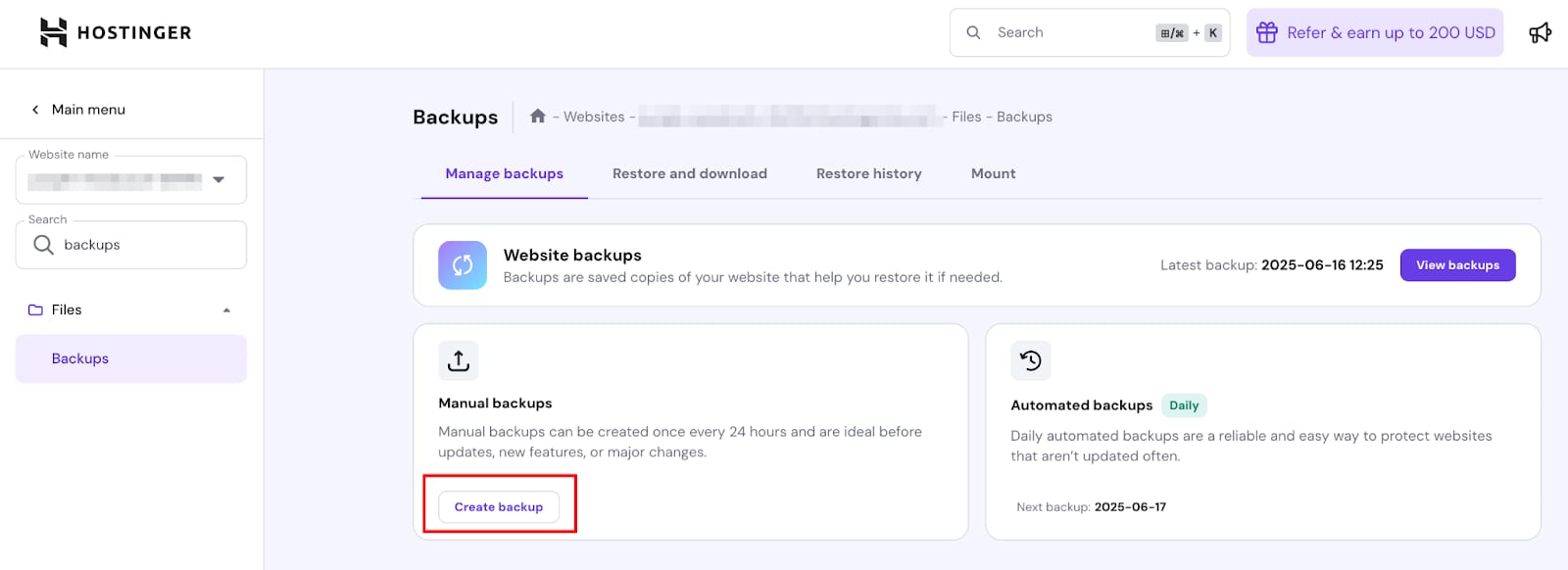
Una vez dentro, haz clic en 'Crear copia de seguridad (Create Backup)' en la opción 'Seleccionar (Select)', luego haz clic en 'Continuar (Continue)', y la copia de seguridad comenzará a prepararse.
Dependiendo de la cantidad y tamaño de los archivos y bases de datos en tu plan, este proceso puede tardar desde unos minutos hasta varias horas.
Una vez generadas las copias de archivos y bases de datos, puedes descargarlas a un dispositivo local o usarlas para realizar una restauración.
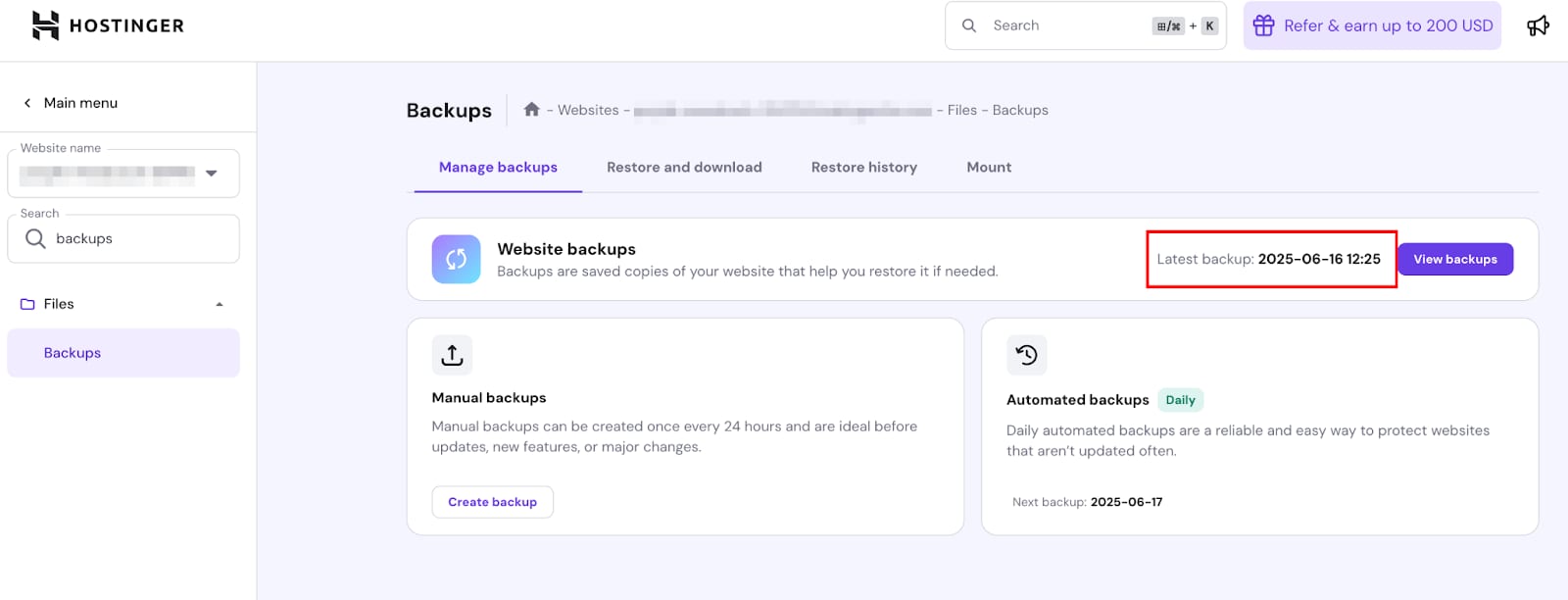
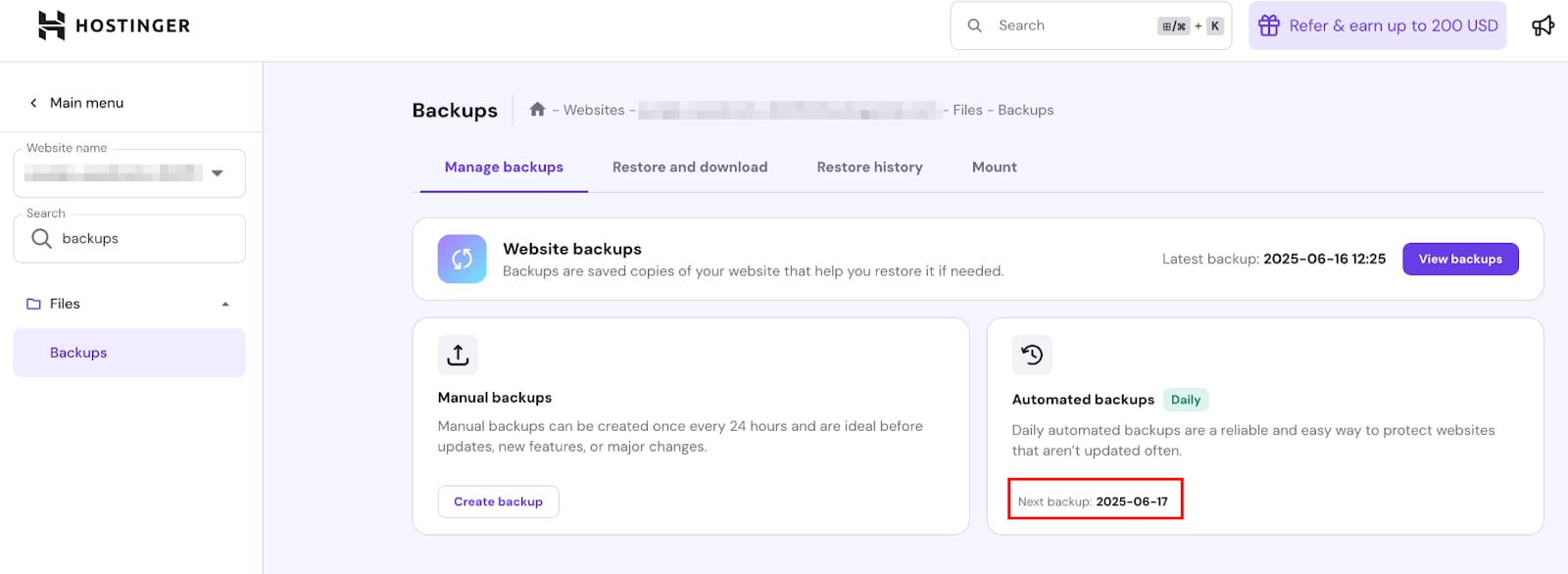
En la sección 'Administrar copias de seguridad (Manage Backups)', podrás ver: la fecha de la última copia de seguridad, la fecha de la próxima copia y la función de crear copias de seguridad manualmente de manera directa.
Usando este método se puede generar una nueva copia de seguridad cada 24 horas. Si tu plan no incluye esta función, considera actualizarlo.
Fuente: documentación oficial de Hostinger