

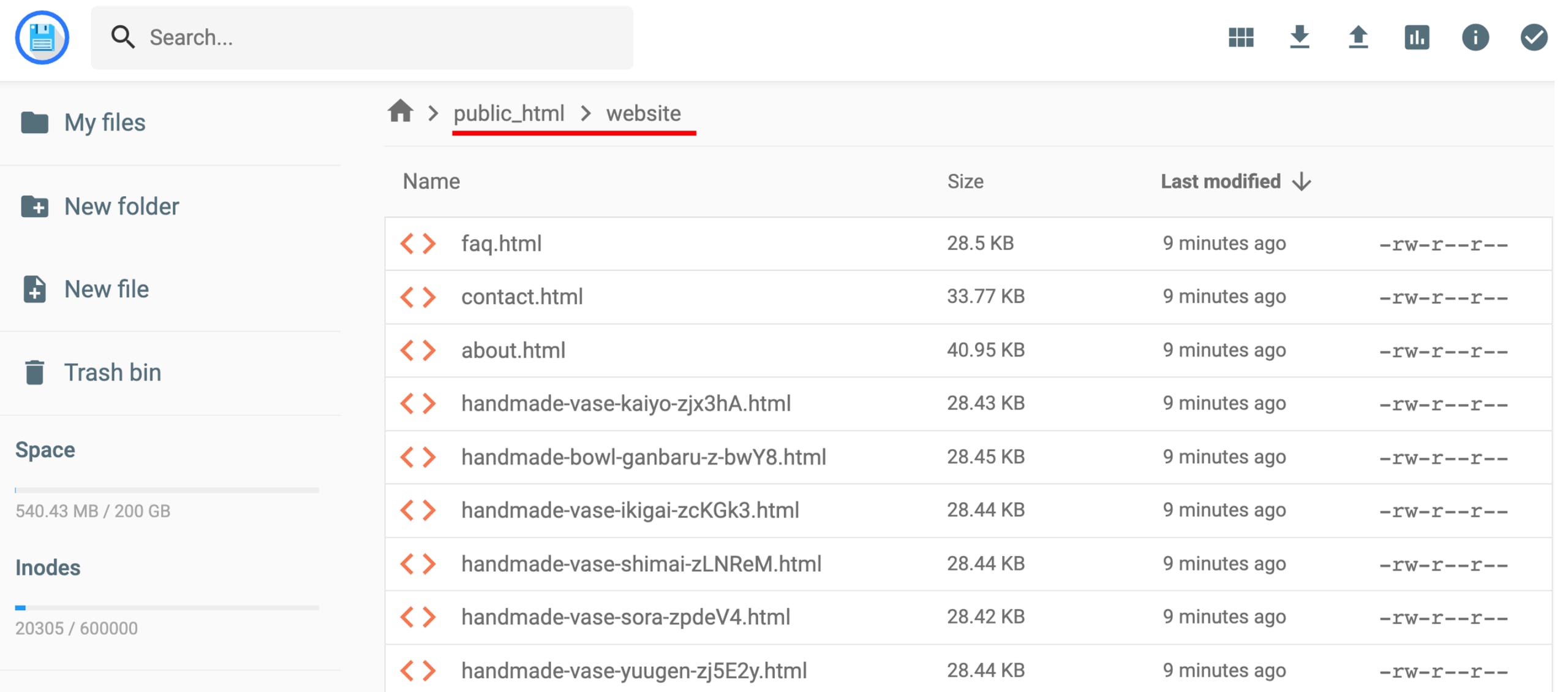
Si tienes una copia de seguridad del sitio en formato comprimido (como .zip, .tar, .tar.gz, .tar.bz2, .tar.xz, .tar.lz4 o .tar.sz) y su tamaño es inferior a 100 GB, puedes subirla fácilmente usando el administrador de archivos.
Nota: los sitios web creados con la herramienta Hostinger no son compatibles con el administrador de archivos.
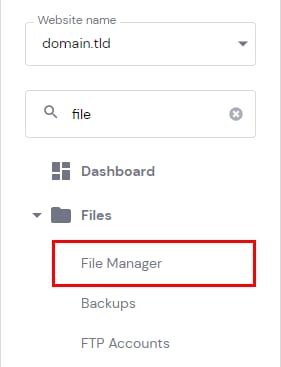
En la cuenta de Hostinger, ve a Sitios web (Websites), encuentra el sitio correspondiente y haz clic en “Panel (Dashboard)”. Luego, en la barra lateral izquierda, encuentra Administrador de archivos (File Manager) y haz clic.
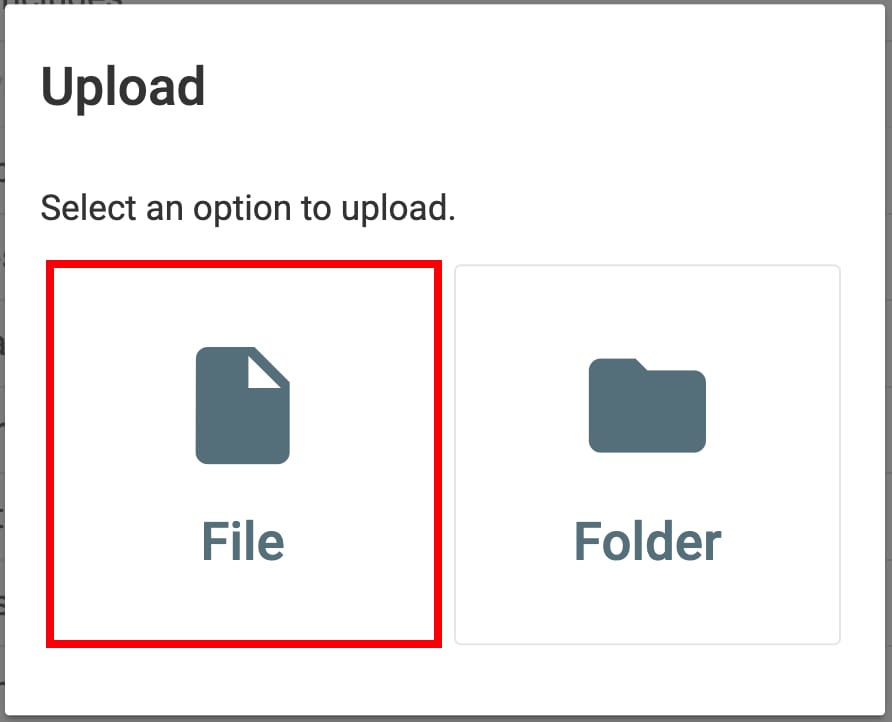
A continuación, selecciona la opción para acceder a los archivos del sitio web, abre la carpeta public_html, haz clic en el ícono de “Subir (upload)” en la esquina superior derecha y sube tu archivo de copia de seguridad.
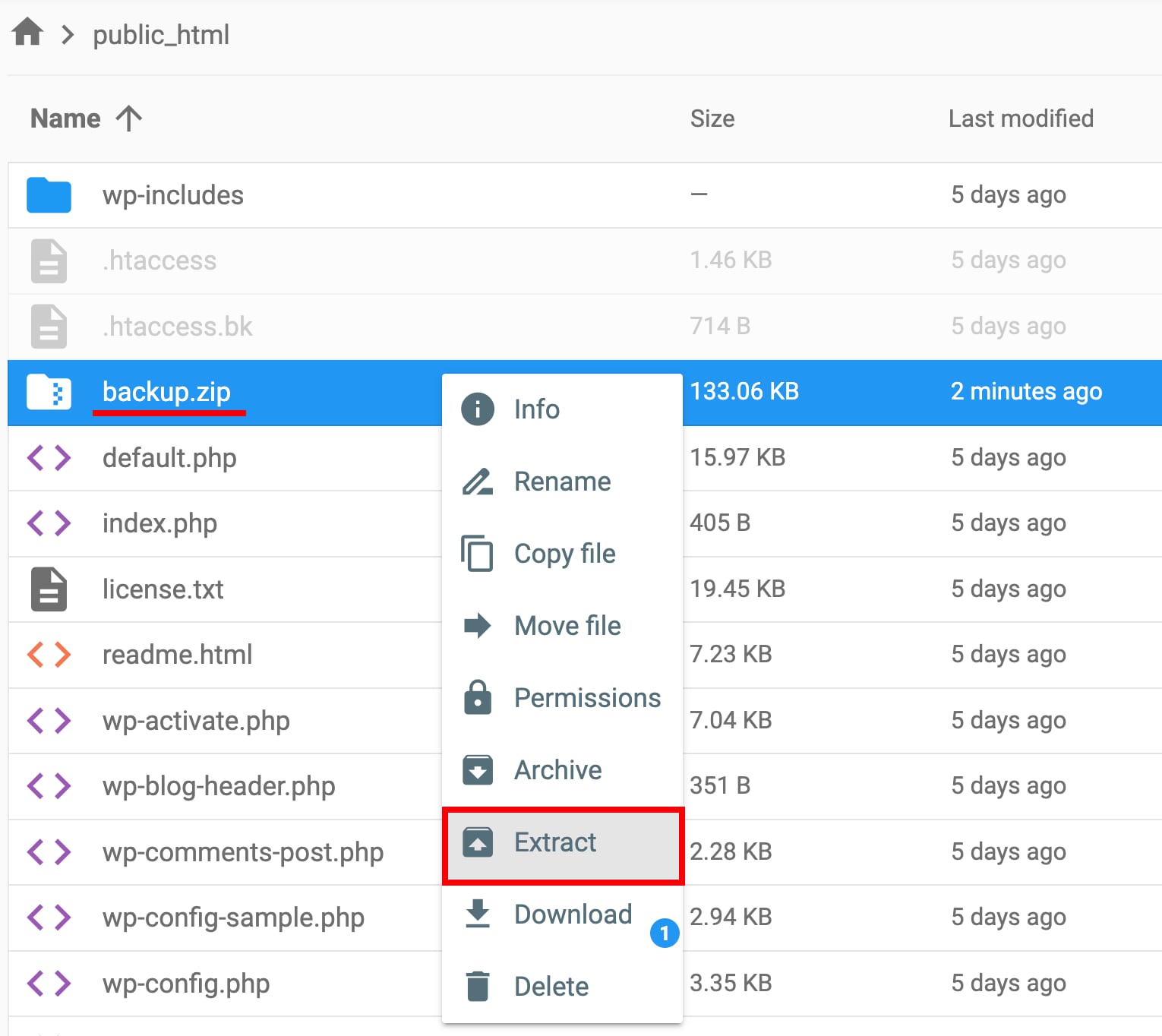
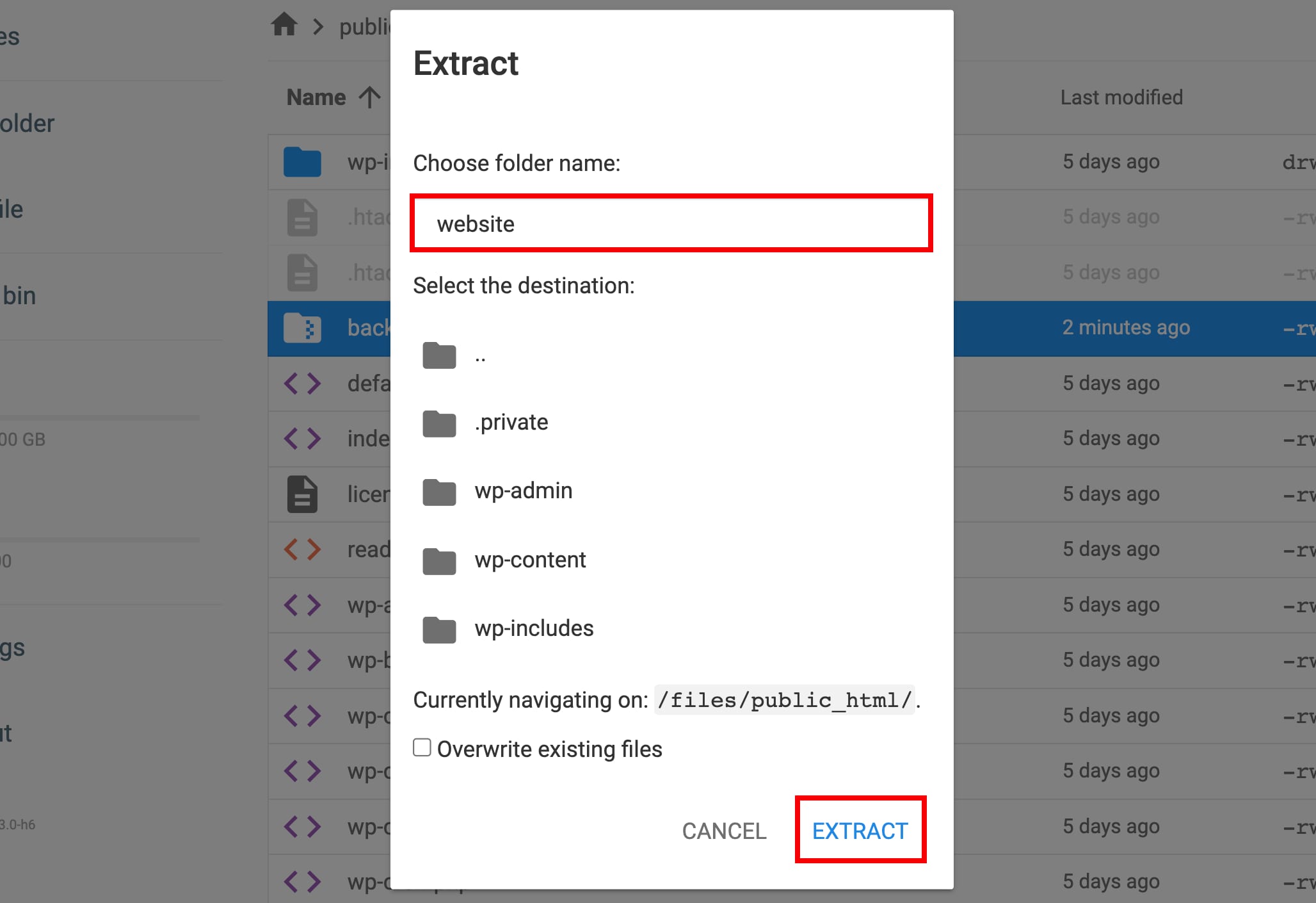
Una vez que la subida se complete, haz clic derecho sobre el archivo de copia de seguridad subido y selecciona “Extraer (Extract)”, ingresa el nombre de la carpeta donde deseas extraer el archivo de copia de seguridad y haz clic en “Extraer (Extract)”.
Fuente: documentación oficial de Hostinger